Employee sheet
This labor sheet helps departments budget at the employee level and works similar to the JobCode sheet. Volume adjustments are excluded from salary calculations. Employee Listing data is included in the Employee sheet.
When you populate the Employee_Roster_YYYY tables (using Load Employee Master), the data appears in the individual employee rows in each job code section of the Employee sheet.
NOTE: The jobcode summary details are collapsed by default.
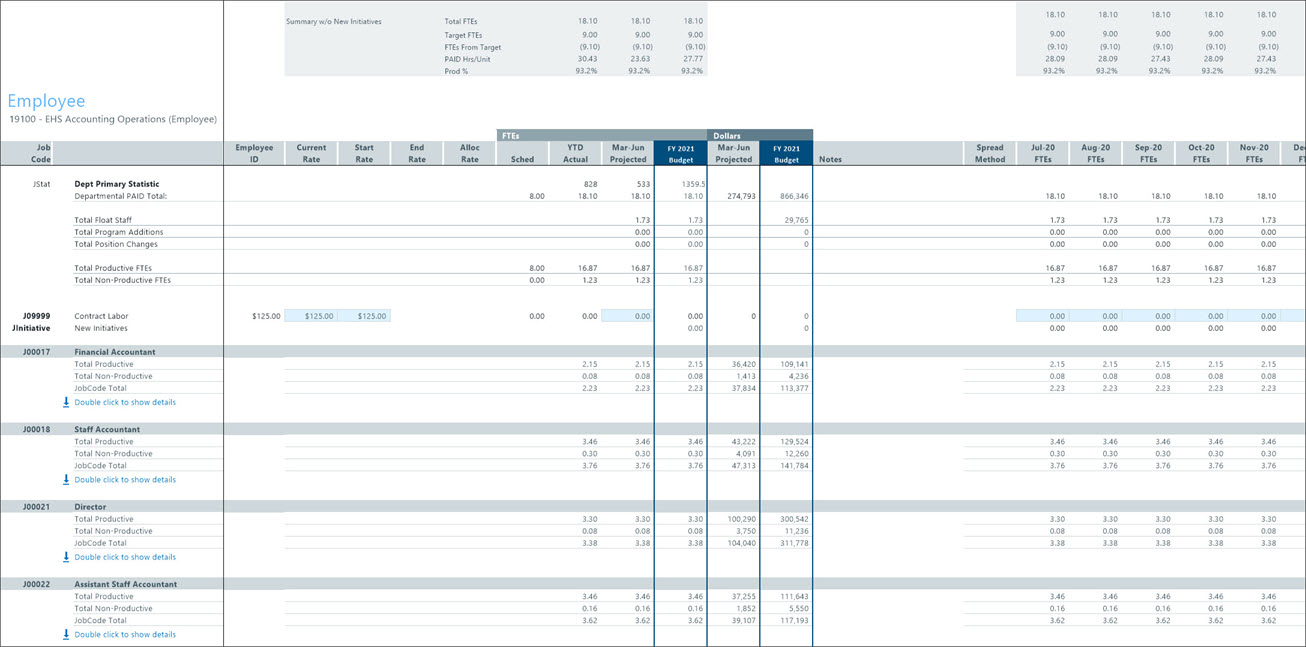
This sheet comprises three main areas.
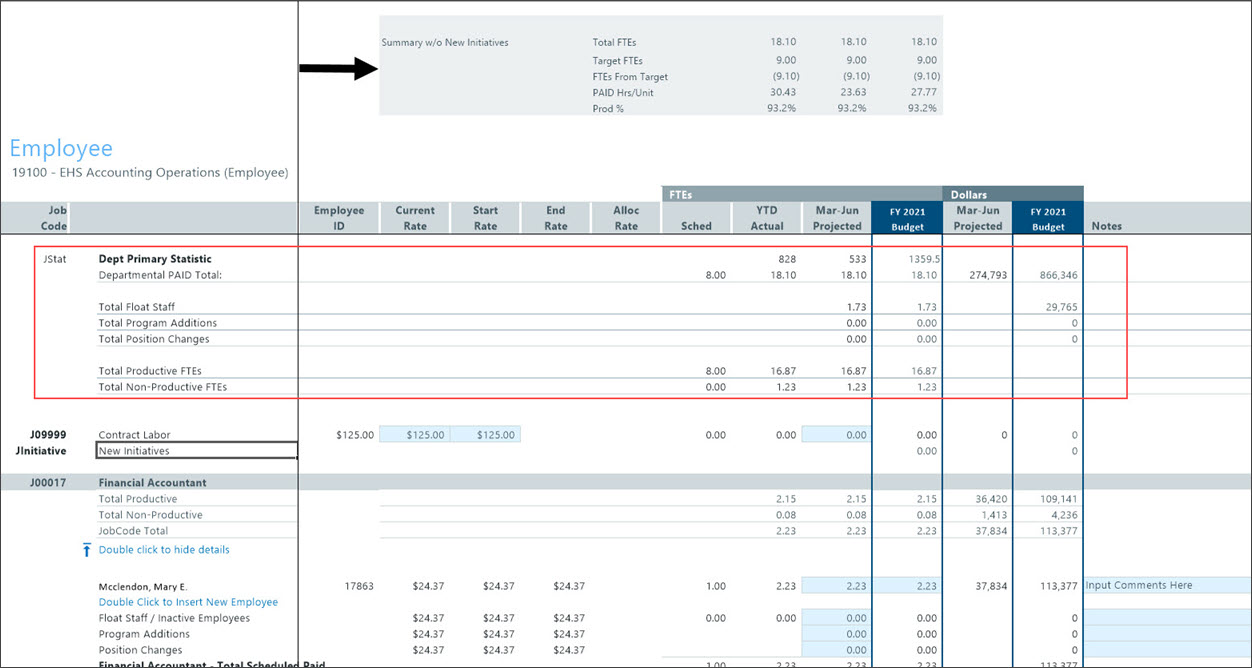
Summary
The Summary w/o New Initiatives section provides an overview of the FTE totals, target FTEs, and FTEs from the budget target. It also shows the paid hours per unit and the productive percentage.
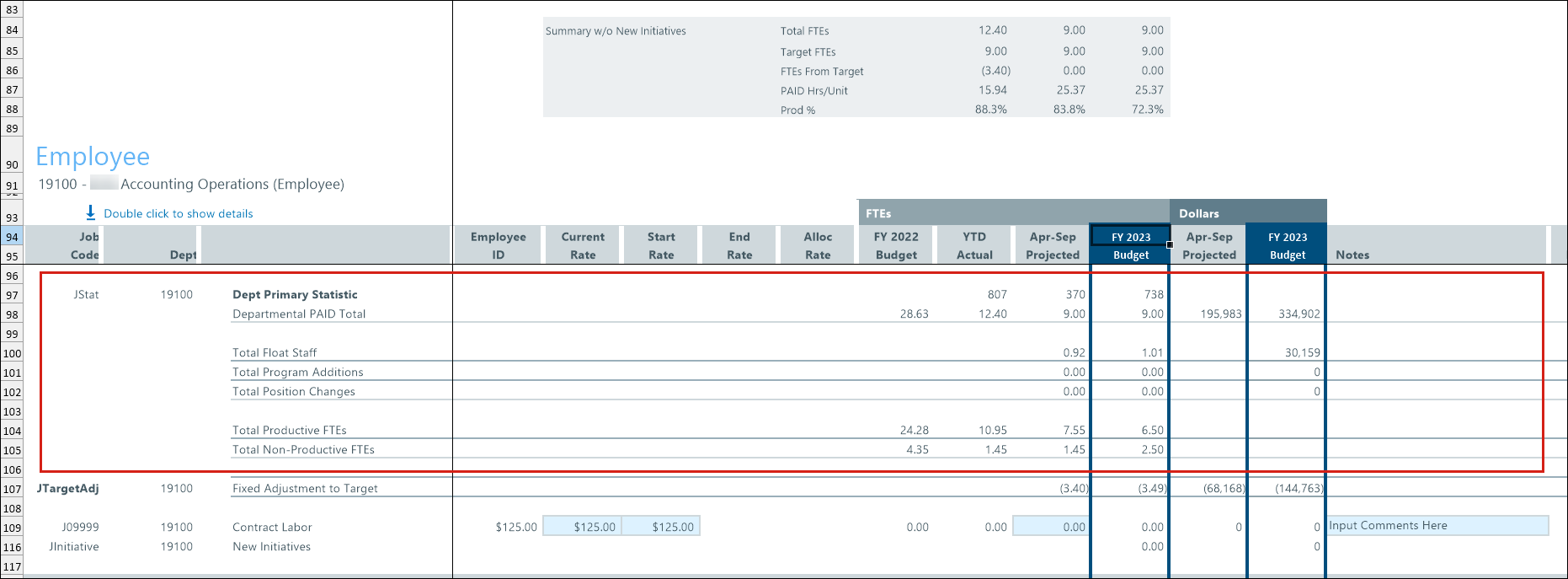
Jobcode Statistics
This section displays the total primary statistical values related to the job codes in the department:
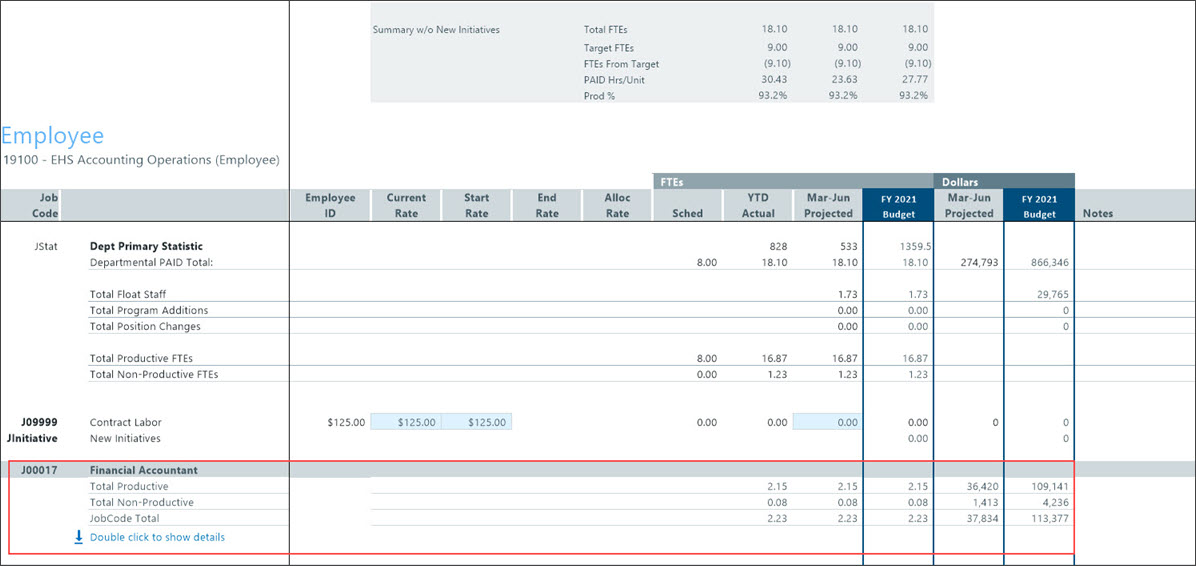
Jobcode summary and details
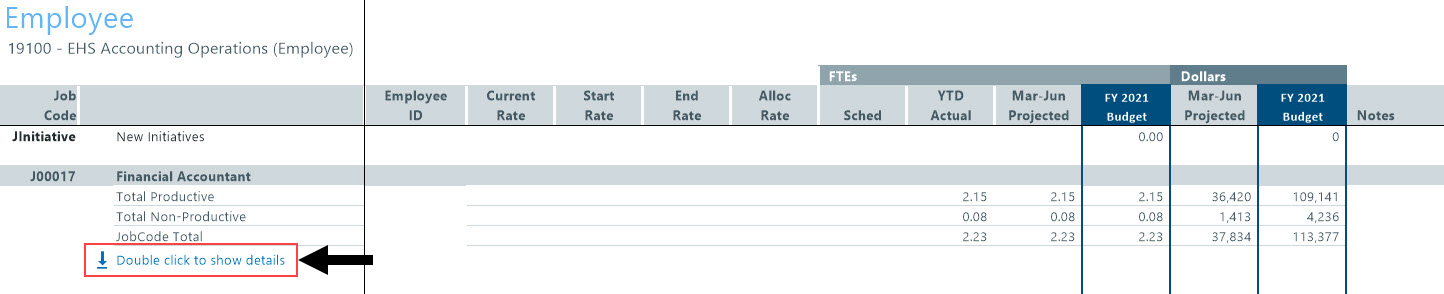
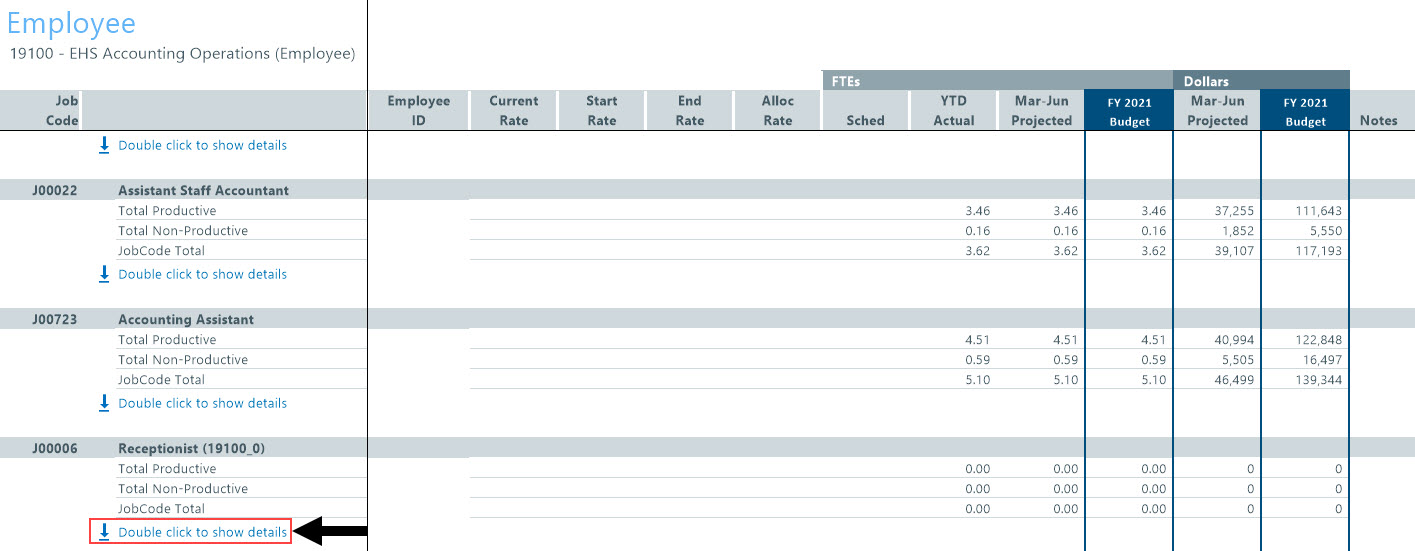
Most of the sheet shows individual job code values. By default, the details are collapsed, showing a summary of: total productive FTEs, total non-productive FTEs, and total FTEs for the job code.
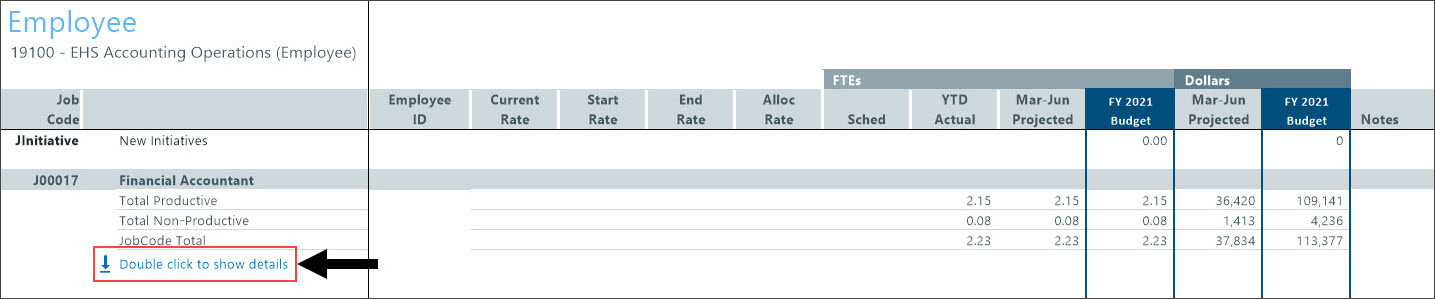
Double click Double click to show details to expand the sections and view job code details and employees assigned the job code.
You can add data to each section by double clicking the respective label.
IMPORTANT: If you add a new calculation method (such as a new job code pay type) include calculated hours and dollars. This ensures that the calculation method is included when the budget plan file is rebuilt.
-
Double Click to Insert New Employee
-
Double Click to Insert New Pay Type
Scroll to the bottom of the sheet to add a new job code section.
-
Double Click to Insert New Job Code
Click Save.
-
Non-FTE-related pay categories are added during the interface process within the job code block and use a dollars-per-productive-hour or input monthly methodology.
-
You can make monthly adjustments to FTEs to model staging of staffing changes.
-
For contract labor, you must enter requests for contract labor FTEs. No default to YTD is made.
Column descriptions
This table describes the columns in the Employee sheet.
| Column name | Column letter | Description |
|---|---|---|
| Job Code | A | The job code identification number (using Jobcode.KHABgtCode). |
| Employee ID | F | The employee identification number. |
| Current Rate | G | The hourly rate at the start of the budget process. |
| Start Rate | H |
The hourly rate at the start of the new budget year. This rate includes salary increases expected in the remainder of the current year. |
| End Rate | I | The hourly rate at the end of the budget process, including all salary increases through the end of the budget year. The rate is calculated from the last month of the budget, which contains the effective rate of all merit and market adjustments. |
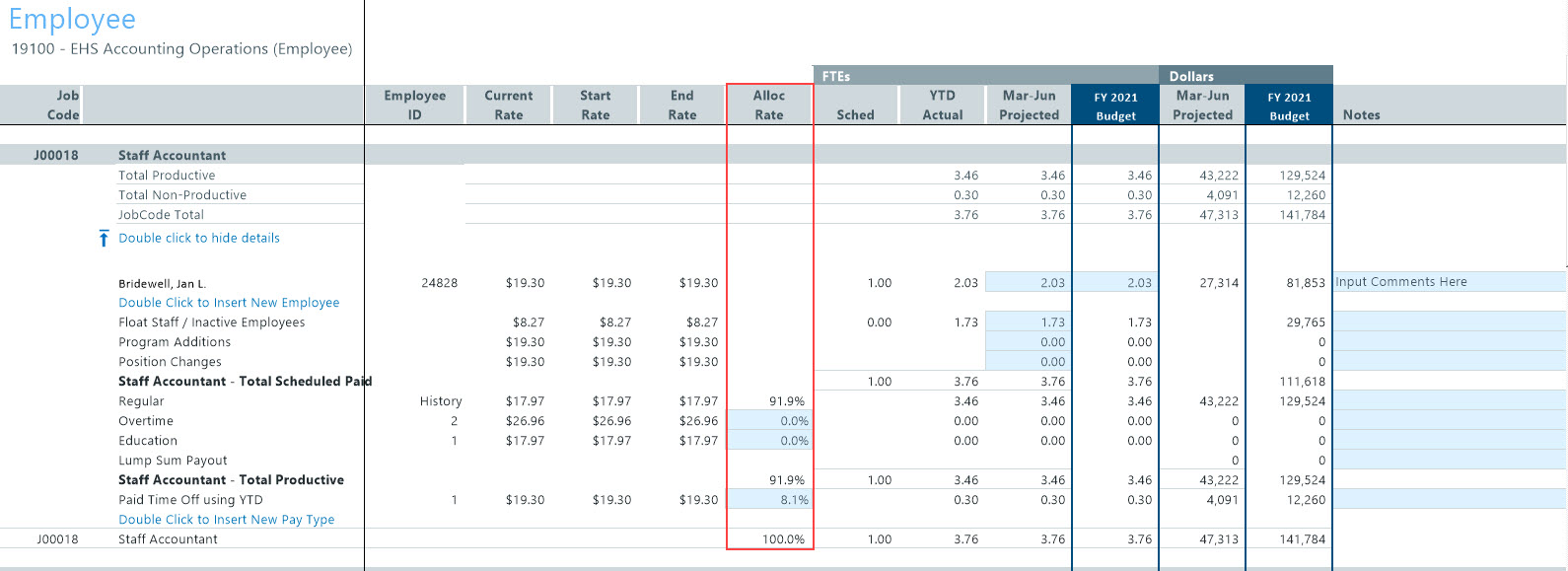
| Alloc Rate | J | Calculated based on YTD actual % of total FTE. You can make adjustments to allocate NYB FTEs for salary calculations. |
| Sched | K | Scheduled FTEs from the labor master file or CYB FTEs, depending on the configuration option selected in the Budget Configuration Assumptions driver file. |
| YTD Actual | L | Year-to-date FTEs from the Payroll26 database. |
| Month-Month Projected (FTEs) | M | Projected FTEs for the remaining months of the current fiscal year. Initial FTE allocation is the same as YTD. |
| FY20XX Budget (FTEs) | N | Starting point matches projected FTEs. You can make monthly adjustments in the Month-Year FTEs columns (columns S-AD). |
| Month-Month Projected (Dollars) | O | Projected dollars for the remaining months of the current fiscal year. |
| FY20XX Budget (Dollars) | P | Projected dollars for the budget year. |
| Notes | Q | Enter comments for the line item, as needed. |
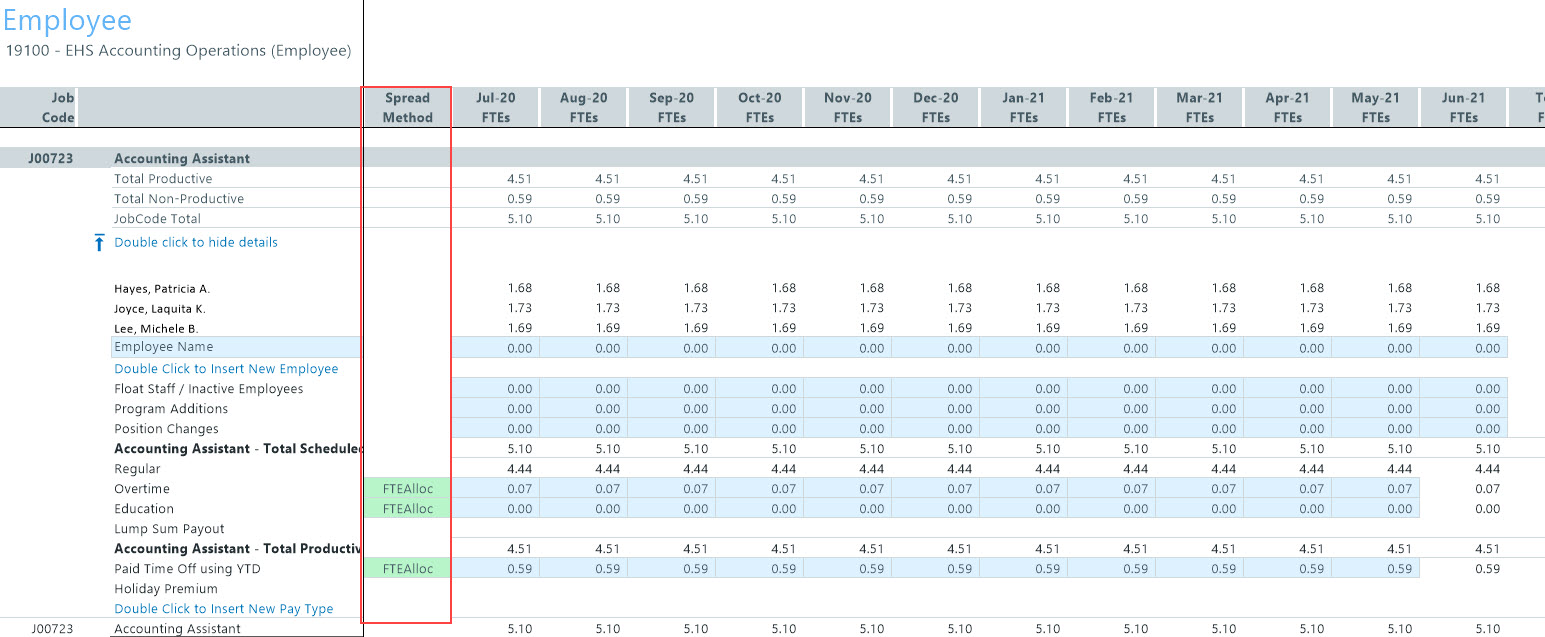
| Spread Method | R | Select a spread method for the pay type, as needed. |
| Month-Year FTEs | S-AD |
Enter a percentage of each FTE factor to the total factor. For example, the FTE factor for month one is 177 divided by the FTE factor for the year of 2080 or 2086. It ranges around approximately 8% per month. NOTE: Not all pay types allow you to update the spread amount. |
| Month-Year Hours | AG-AS | Hours spread across months, including total budgeted hours. |
| Month-Year Dollars | AT-BF | Dollars spread across months, including total budgeted dollars. |
| Month-Year FICA | BH-BT | FICA spread across months, including total budged FICA. |
| Projected FICA | BW | Total projected FICA amount. |
| Month-Month Hours | BX | Total budgeted hours for the remaining months of the fiscal year. |
| Month-Month Dollars | BY | Total budgeted dollars for the remaining months of the fiscal year. |
The following sections provide instructions about performing specific actions in this sheet.
Update projected and budgeted FTE for an employee
-
Go to the job code assigned to the employee, and double-click Double click to show details.
-
In the Month-Month Projected (column M) and FY 20XX Budget (column n) columns, update the FTE values for the employee, as needed.
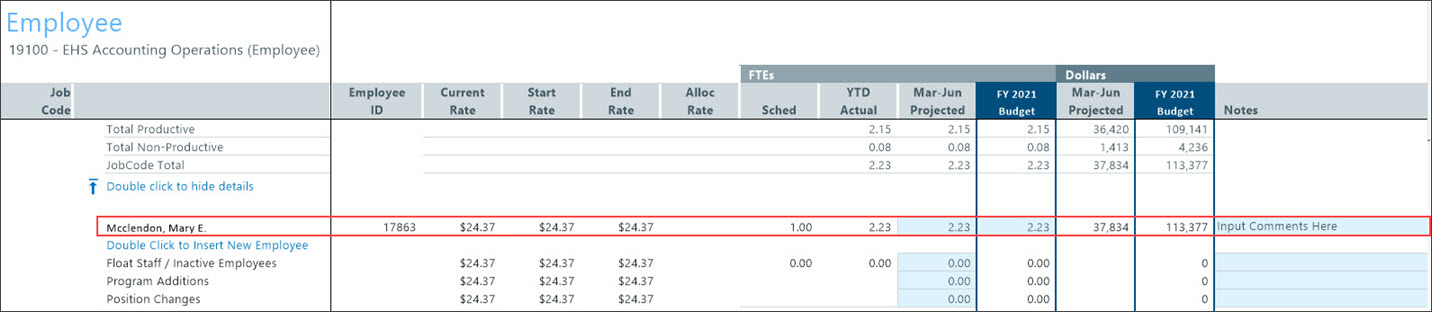
- In the Notes column (column Q), enter comments, as needed.
- After making your changes, in the budget file Navigation pane, click Save Budget.
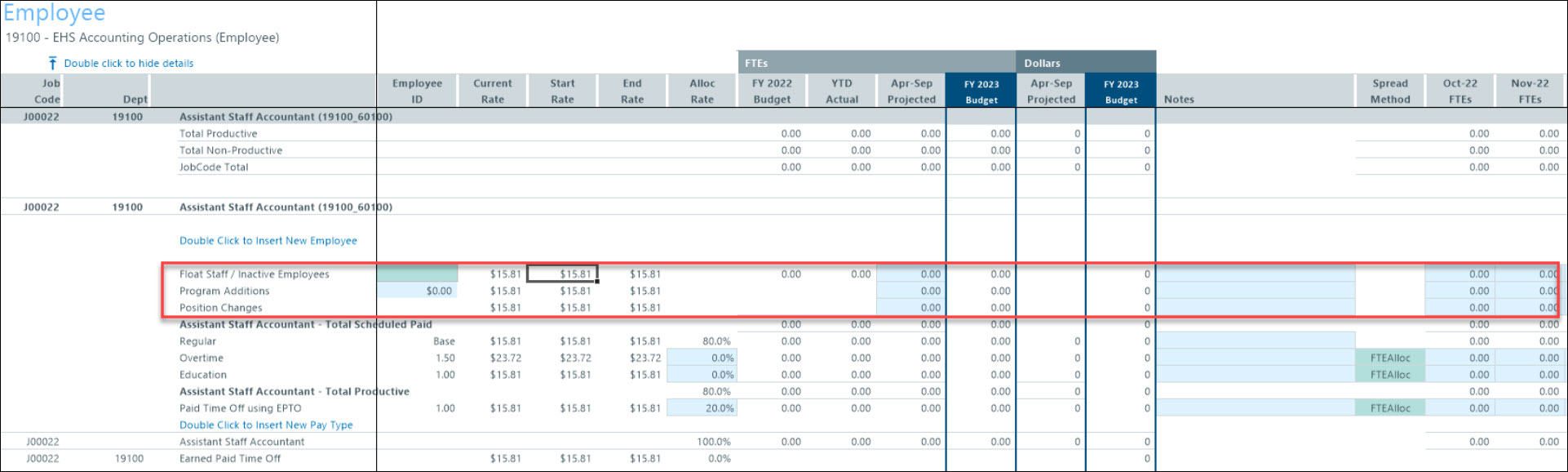
Update projected FTEs for float staff/inactive employees, program additions, and position changes
Expected Behavior for historically posted FTE data:
-
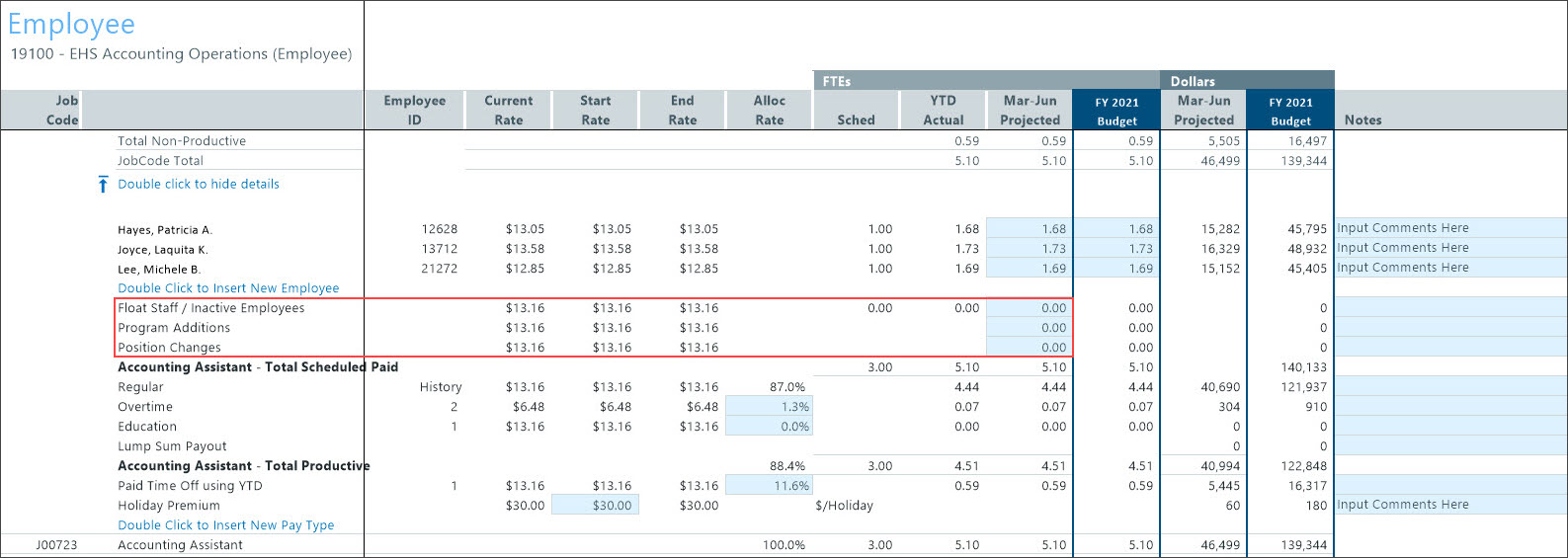
Float Rate: Rate is calculated from posted salary dollars and hours from people assigned to a different Home department. Average rate of posted employees is used for the row when no float employees are posted.
The Float Rate can be updated by selecting "Update Rate" in the green cell and inputting a rate in the blue cell below the "Update Rate" selection. When historical FTEs are posted to the job code, this rate will only apply to the Float Row, will not include Merit and Market increases since those would be budgeted in Home depts, and will impact the average hourly rate used to calculate the pay type rates.
Program Addition and Change Rate: When historical FTE data posts to the job code, this rate will be a weighted average from people posted. The Update Rate will not change historical posted rates in these rows.
The Program Addition row does not apply Merit and Market increases to salary expense calculations to account for newly budgeted FTEs who would not receive these increases in the same year they are hired.
The Program Change row does apply Merit and Market increases to salary expense calculations to account for adjustments made to historically posted FTEs.
Input FTEs: Remaining year Projected FTEs can be input in blue cells of the Month-Month Projected column and in the blue cells of the monthly budget columns.
Example of Jobcode block with historical posted FTE and Float staff data:
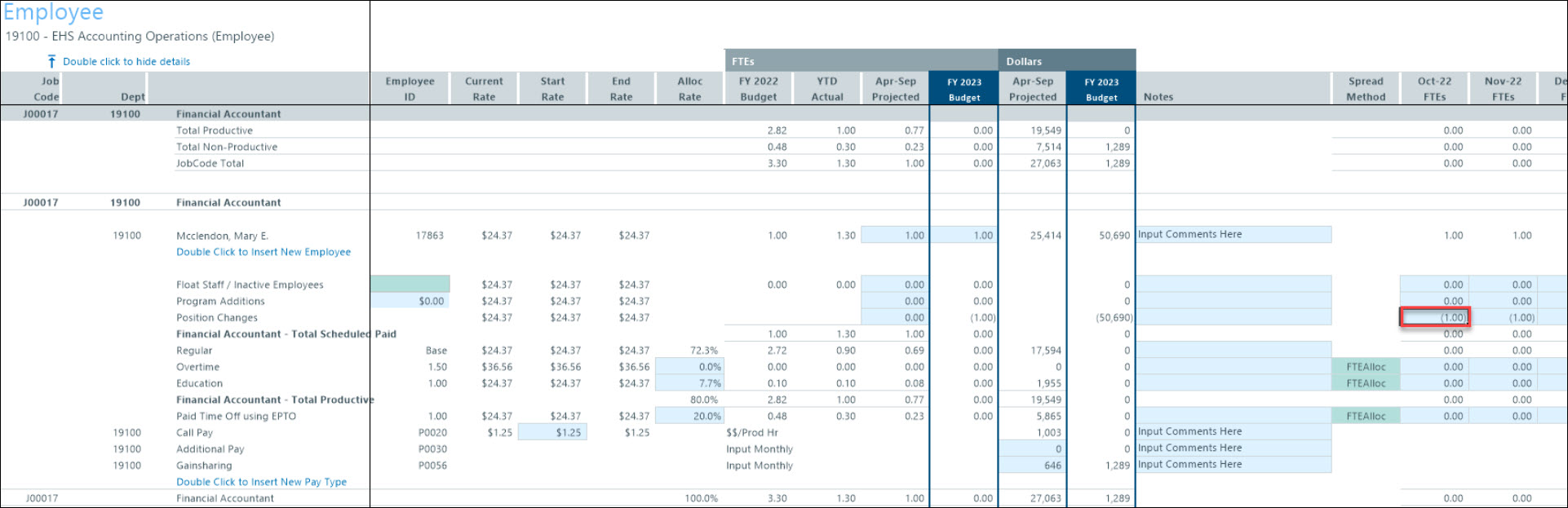
Example of making an FTE reduction using Position Change row:
Hit the minus key and click on the FTE cell reference in the next year budget month you wish to reduce.
If the FTE(s) will be zeroed out for all next year budget months, it is best to type a zero in the FY YYYY Budget column.
NOTE: When making a negative reference to an employee row in the Position Changes row, the reduction will be reflected only in the standard pay type rows. The premium dollar pay type rows below the standard pay types need to be zeroed out individually. Also take care to remove or adjust any premium salary expenses allocated from the 23 Labor Premium Dollars Driver.
Float, Addition, and Change row Rates: Rate will reference the Mid rate from the 26 Labor Limits driver as a starting point which can be adjusted. When using "Update Rate", when no employee have been posted, the rate will be used for all 3 rows. If an "Add New Employee" row is added, the Mid rate from the driver will be provided, but can be adjusted. If both options are used, the standard pay type rows will used a weighted average calculated from both sections.
Input FTEs: Remaining year Projected FTEs can be input in blue cells of the Month-Month Projected column and in the blue cells of the monthly budget columns.
- In the Notes column (column Q), enter comments, as needed.
- After making your changes, in the budget file Navigation pane, click Save Budget.
Update the allocation rate for a job code pay type
-
Go to the job code, and double-click Double click to show details.

-
In the Alloc Rate column (column J), enter a percentage for each line item, as needed.
- In the Notes column (column Q), enter comments, as needed.
- After making your changes, in the budget file Navigation pane, click Save Budget.
Update the spread method for a job code pay type
-
Go to the job code, and double-click Double click to show details.

-
From the Spread Method column (column R), select the spread method to use.
-
In the Month-Year FTEs columns (columns S-AD), make adjustments, as needed.
NOTE: The spread methods available are configured by your organization.
- After making your changes, in the budget file Navigation pane, click Save Budget.
Add a new employee
-
Go to the job code to add the new employee, double-click Double click to show details.
-
Double-click Double Click to Insert New Employee.
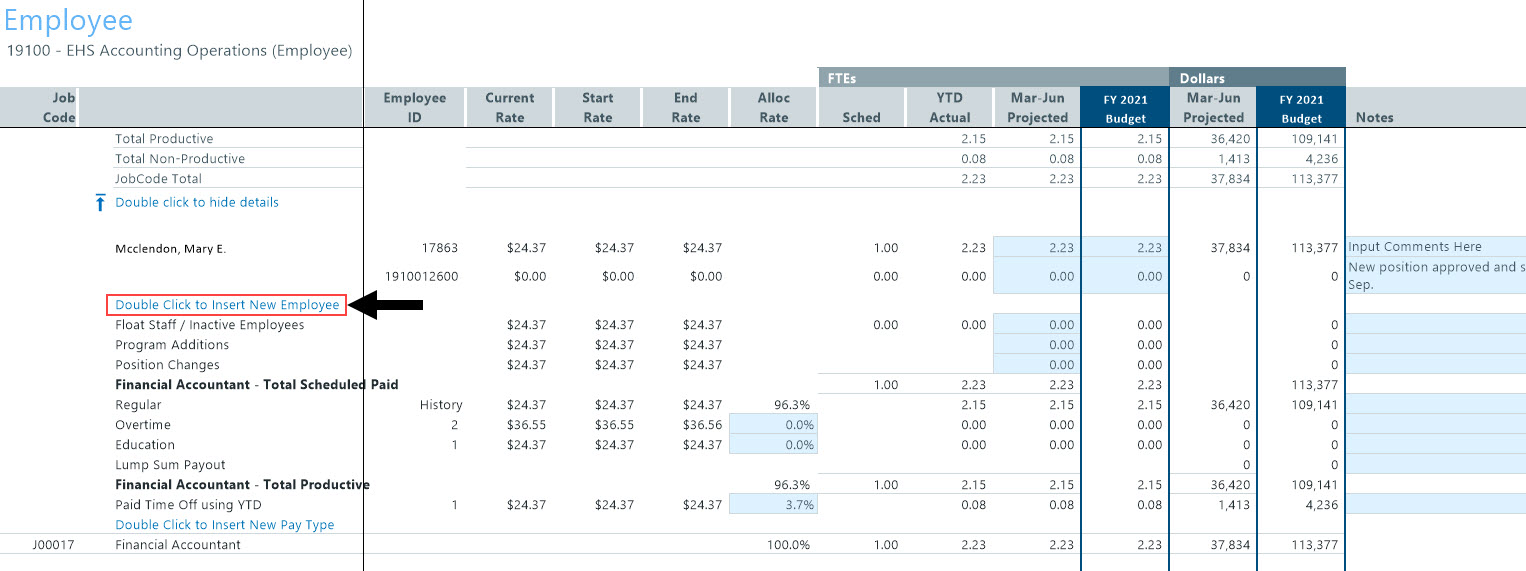
- Enter information in the following columns, as needed:
- Employee Name (column E)
- Employee ID (column F)
- Current Rate (column G)
- Start Rate (column H)
- Month-Month Projected (FTE) (column M)
- Notes (column Q)
- Month-Month FTE columns (columns S-AD)
- After making your changes, in the budget file Navigation pane, click Save Budget.
Add contract labor
-
Go to the contract labor job code.
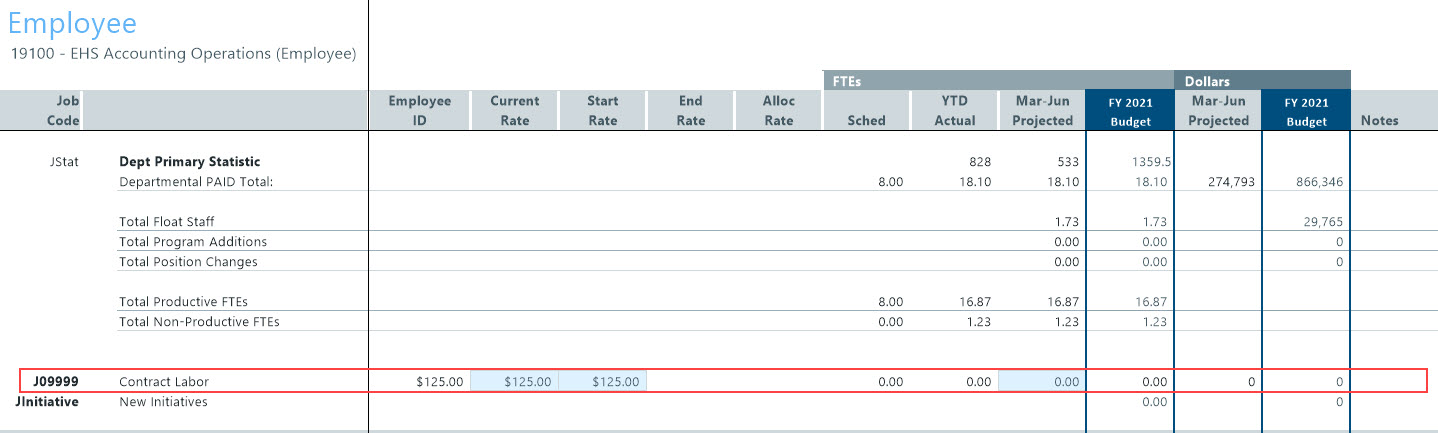
- In the Current Rate column (column G), enter the hourly rate for the contract labor.
- In the Start Rate column (column H), enter the starting rate.
- In the Month-Month Projected (FTEs) column (column M), enter the projected FTE value.
- In the Month-Year FTEs columns (columns S-AD), enter the FTE spread across months.
- After making your changes, in the budget file Navigation pane, click Save Budget.
Add a new pay type for a job code
-
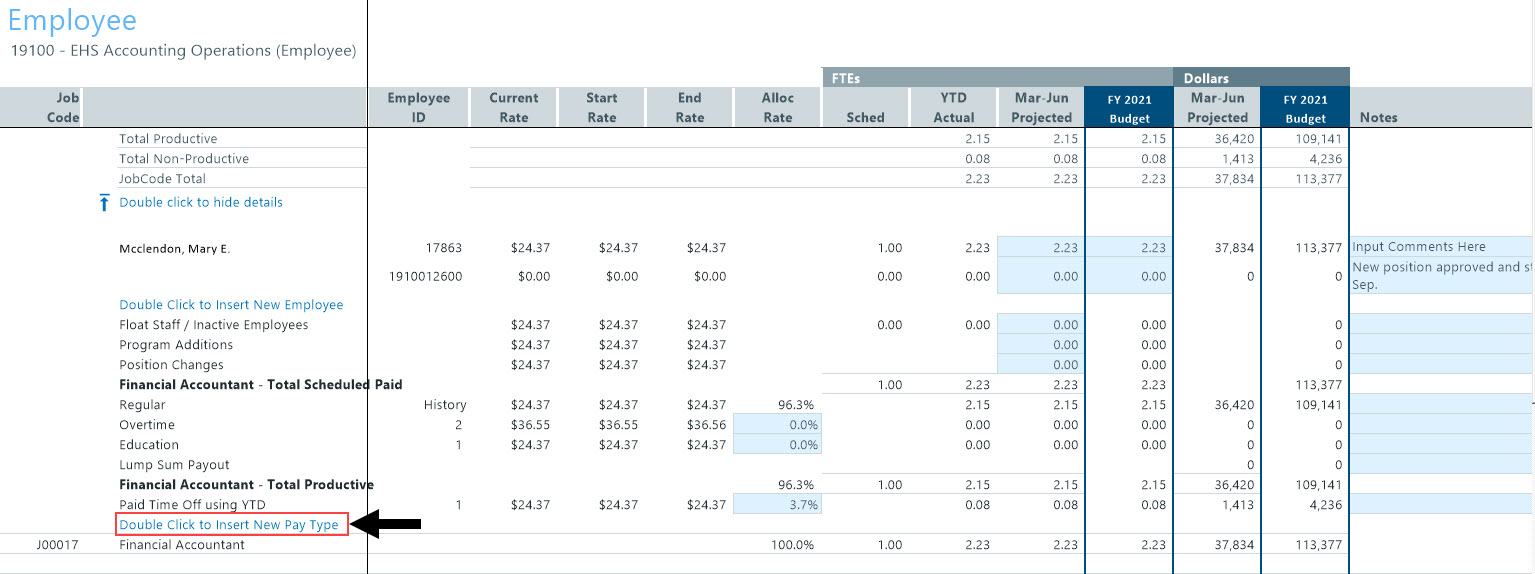
In the job code in which to add the new employee, double-click Double click to show details.
-
Double-click Double Click to Insert New Pay Type.
-
From the Insert Calc Method(s) in sheet Employee dialog, select one of the following calc methods, and click OK:
- Add New AvgPer Paid Hr PayType - Calculates other non-FTE related pay based on the relationship to paid hours in the job code block. Monthly spread will be based on the spread of paid hours.
- Add New AvgPer Prod Hr PayType - Calculates other non-FTE related pay based on the relationship to productive hours in the job code block. Monthly spread will be based on the spread of productive hours.
- Add New Input Monthly PayType - Calculates other non-FTE related pay by typing in the monthly totals.
-
Do the following based on the calc method you selected in step 3:
Calc method Steps Add New AvgPer Paid Hr PayType
Add New AvgPer Prod Hr PayType
- In the Calc Method Variables dialog, enter a pay type or click Choose Value to select a pay type, and then click OK.
- In the Start Rate column (column H), enter the hourly start rate.
- In the Notes column (column Q), enter comments, as needed.
- Repeat steps a-c for each pay type to add.
- When you finish making changes, in the budget file Navigation pane, click Save Budget.
Add New Input Monthly PayType - In the Calc Method Variables dialog, enter a pay type or click Choose Value to select a pay type, and then click OK.
- In the Month-Month Projected (Dollars) column (column O), enter the projected dollars.
- In the Notes column (column Q), enter comments, as needed.
-
In the monthly budget (columns AT-BE), enter values for the applicable months.
- Repeat steps a-d for each pay type to add.
- When you finish making changes, in the budget file Navigation pane, click Save Budget.
Add a new job code to a department
-
Go to the end of the job code listing, and double-click Double Click to Insert New Job Code.
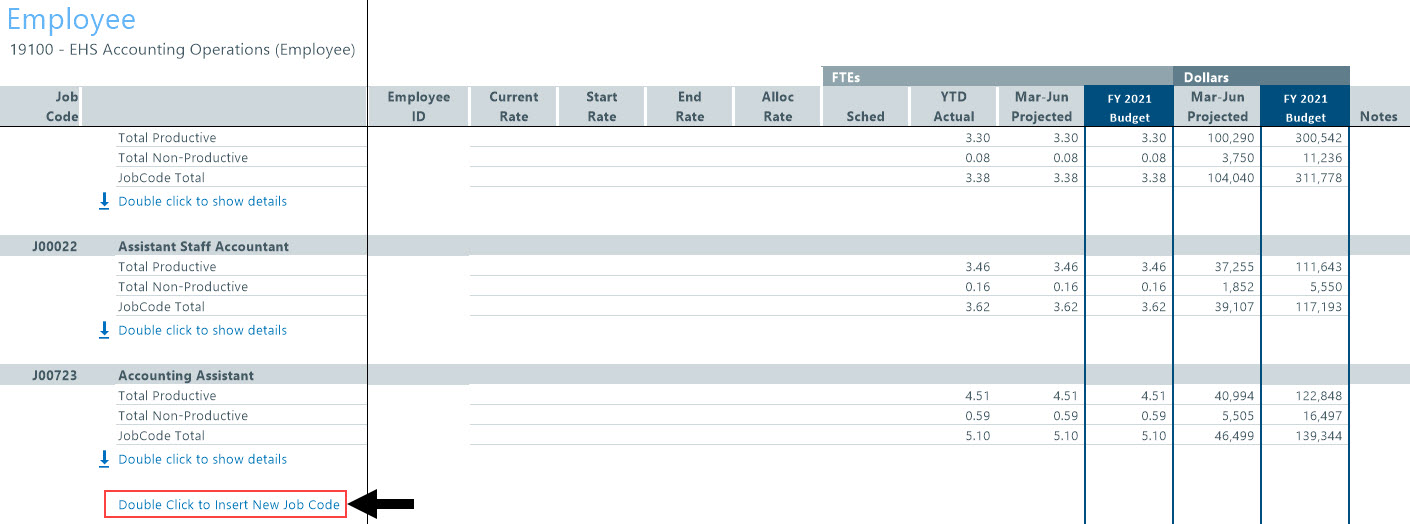
- In the Calc Method Variables dialog, enter a job code or click Choose Value to select a job code, and then click OK.
-
To enter adjustments to allocate NYB FTEs for salary calculations, click Double Click to Show Details.
- From the details section, do any of the following:
- When you finish making changes, in the budget file Navigation pane, click Save Budget.
Add a new department pay type
-
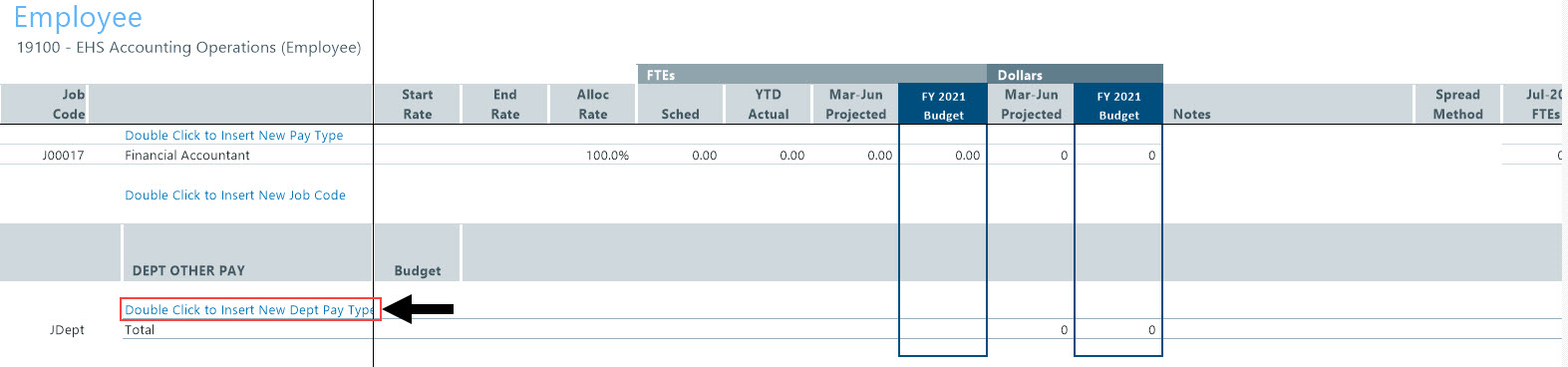
Go to the bottom of the sheet, and double-click Double Click to Insert New Dept Pay Type.
-
From the Insert Calc Method(s) in sheet Employee dialog, select one of the following calc methods, and click OK:
NOTE: The dialog includes fields that are not enabled at this time.
- Dept_AvgPerProdHr - Calculates other Non-FTE related pay based on the relationship to productive hours in the department. Monthly spread will be based on the spread of productive hours.
- Dept_InputMonthly - Calculates other Non-FTE related pay by inputting monthly amounts for the department.
- Dept_InputTotal - Calculates other Non-FTE related pay by typing in a total for the department. Monthly spread will be spread evenly by month.
-
Do the following based on the calc method you selected in step 2:
Calc method Steps Dept_AvgPerProdHr
- In the Calc Method Variables dialog, enter a pay type or click Choose Value to select a pay type, and then click OK.
- In the Budget column (column H), enter the hourly start rate.
- In the Notes column (column Q), enter comments, as needed.
- Repeat steps a-c for each pay type to add.
- When you finish making changes, in the budget file Navigation pane, click Save Budget.
Dept_InputMonthly - In the Calc Method Variables dialog, enter a pay type or click Choose Value to select a pay type, and then click OK.
- In the Month-Month Projected (Dollars) column (column O), enter the projected dollars.
- In the Notes column (column Q), enter comments, as needed.
-
In the monthly budget (columns AT-BE), enter values for the applicable months.
- Repeat steps a-d for each pay type to add.
- When you finish making changes, in the budget file Navigation pane, click Save Budget.
Dept_InputTotal - In the Calc Method Variables dialog, enter a pay type or click Choose Value to select a pay type, and then click OK.
- In the Month-Month Projected (Dollars) column (column O), enter the projected dollars.
- In the FY 20XX Budget (Dollars) column (column P), enter the projected budgeted dollars.
- In the Notes column (column Q), enter comments, as needed.
- Repeat steps a-d for each pay type to add.
- When you finish making changes, in the budget file Navigation pane, click Save Budget.
